
How to change the cover time within a menu
How to change the cover time within a menu
- Go to Menu Manager
- Click Manage next to the menu you wish to amend
On the first screen on the right hand side column you will see these following options:
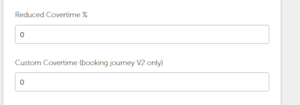
REDUCED COVER TIME – reduces each cover time already set in the system by this percentage you enter.
For example if 2 covers get 90 minutes and 4 covers get 120 minutes and you reduced the cover time by 10%, 2 covers would get 81 minutes and 4 covers would get 108 minutes.
CUSTOM COVER TIME – gives everybody that selects this menu the time you put here.
For example if you put 180 minutes, all size bookings would get 180 minutes.